Working on modern web applications often means juggling multiple processes at once. For basic feature development at my job, I need five terminal windows running simultaneously: the core backend, our auth service, the main web app, the feature I'm actually working on, and one spare for random commands.
Every work session starts the same way. Open terminal. cd into the first repo, remember the command,
run it. New tab. cd into the second repo, remember that command, run it. Repeat five times.
Across multiple repos with different startup commands, different environment quirks, different
watchers, that's at least five minutes of mechanical setup before you've written a single line of code.
It doesn't sound like much, but it quietly adds up, and more than the time, it's the mental overhead of getting all the commands right before you've even started doing real work.
This is where Gum changed everything for me.
Before we get to Gum: what's a shell script?
If you're already comfortable with bash, skip to the next section. But if you've only ever typed commands one at a time, here's the thing: you can save a sequence of commands into a file and run them all at once.
That .sh file you see lying around repos? That's all it is, a plain text file with your commands, executed top to bottom.
So instead of doing this every work session:
cd ~/projects/backend && npm run dev
# new tab...
cd ~/projects/auth-service && npm run start
# new tab...
cd ~/projects/web-app && npm run dev
You write it once in a file called start.sh, make it executable with chmod +x start.sh, and from then on you just run ./start.sh.
That alone can save you a ton of time. But it's still a bit blunt, one script that launches everything with no interactivity and no feedback. Which brings me to what actually took this to the next level for me: Gum.
What is Gum?
Gum is a tool that lets you write glamorous shell scripts. It provides interactive prompts, selection menus, styled text, spinners, and input fields, all accessible from plain bash. There's no need to build a full CLI application in Go or Python. If you can write a shell script, you can use Gum.
The appeal is immediate: want a selection menu? One line. Need a confirmation dialog? One line. Want it to look polished and professional? It already does by default.
Building a Script Manager
Rather than memorizing which commands go where or keeping a mental map of terminal tabs, I built a small script manager that acts as my daily mission control. When I sit down to work, I run a single command and choose what I need from an interactive menu.
The end result looks something like this:
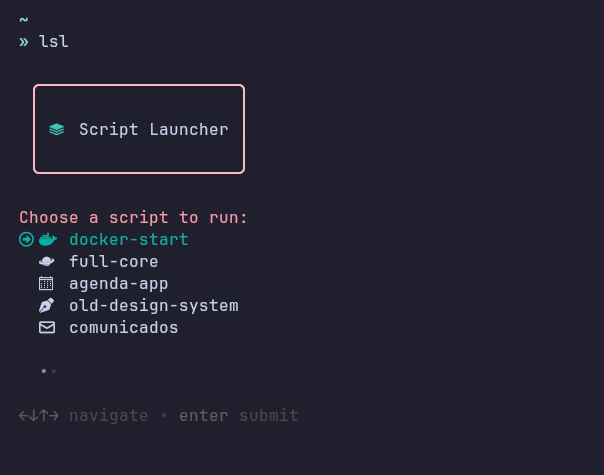
The core of the script looks something like this:
#!/usr/bin/env bash
set -euo pipefail

# ── Constants ──────────────────────────────
readonly SCRIPTS_DIR="$HOME/scripts"
readonly COLOR_PRIMARY="#40CAC2"
readonly COLOR_ACCENT="#00b8ad"
readonly COLOR_HEADER="#FBA0B1"
readonly COLOR_BORDER="#FFBFCB"

# ── Helpers ────────────────────────────────
styled_text() {
  gum style --foreground "$COLOR_PRIMARY" "$1"
}

print_header() {
  gum style \
    --foreground 212 \
    --border-foreground "$COLOR_BORDER" \
    --border rounded \
    --align center \
    --margin "1 1" \
    --padding "1 1" \
    "$(styled_text " ") Script Launcher"
}

get_choice() {
  gum choose \
    --height 5 \
    --header "Choose a script to run:" \
    --cursor.foreground "$COLOR_ACCENT" \
    --header.foreground "$COLOR_HEADER" \
    "script-1" \
    "script-2" \
    "script-3" \
    "script-4"
  }
}

run_script() {
  local name="$1"
  local script_path="$SCRIPTS_DIR/${name}.sh"

  if [[ ! -f "$script_path" ]]; then
    gum style --foreground "#FF5555" "Error: script '$name' not found at $script_path"
    exit 1
  fi

  gum spin --spinner dot --title "Starting $name..." -- sleep 0.5
  bash "$script_path"
}

# ── Main ───────────────────────────────────
main() {
  print_header

  local choice
  choice=$(get_choice) || { echo "Bye! 👋"; exit 0; }

  [[ -z "$choice" ]] && { echo "Bye! 👋"; exit 0; }

  run_script "$choice"
}

main "$@"
The Modular Approach
The real power here is modularity. Each menu option maps to a standalone script file. Want to add a new workflow?
Create a new .sh file and add one line to the menu. Want to modify how your frontend starts? Edit that single script without touching the launcher.
This separation means the launcher stays clean and simple while the actual logic lives in dedicated files. You can version them independently, share specific scripts with teammates, or swap implementations without breaking anything else.
Why Gum Works So Well
The strength of Gum lies in its simplicity and composability. Because every Gum command outputs plain text, it integrates seamlessly with pipes, variables, and the rest of your shell toolkit. There's no learning curve beyond knowing basic bash, and the visual defaults are polished enough to make your scripts feel like proper tools rather than quick hacks.
The styling options are surprisingly deep too. Custom colors for cursors, headers, and borders let you match your terminal
aesthetic or add visual hierarchy to complex menus. The gum spin command for example adds a professional touch while services boot,
turning a raw script into something that feels intentional.
For teams, this approach has an added benefit: instead of documenting lengthy setup procedures or expecting new members to memorize commands, you encode the workflow directly into a script. Anyone can run the same menu and get the same results without prior knowledge of the project's intricacies, something very useful for non-technical people that need to run the project locally
The Result
My work session now begins with a single command. I select what I need from a menu, services spin up in the correct order, and I'm ready to work. No more cycling through tabs wondering which one has the logs. No more context switching to recall commands.
If you find yourself drowning in terminal windows or struggling to remember project-specific commands, Gum is worth exploring. Sometimes the most impactful improvements to developer experience come from the simplest tools.